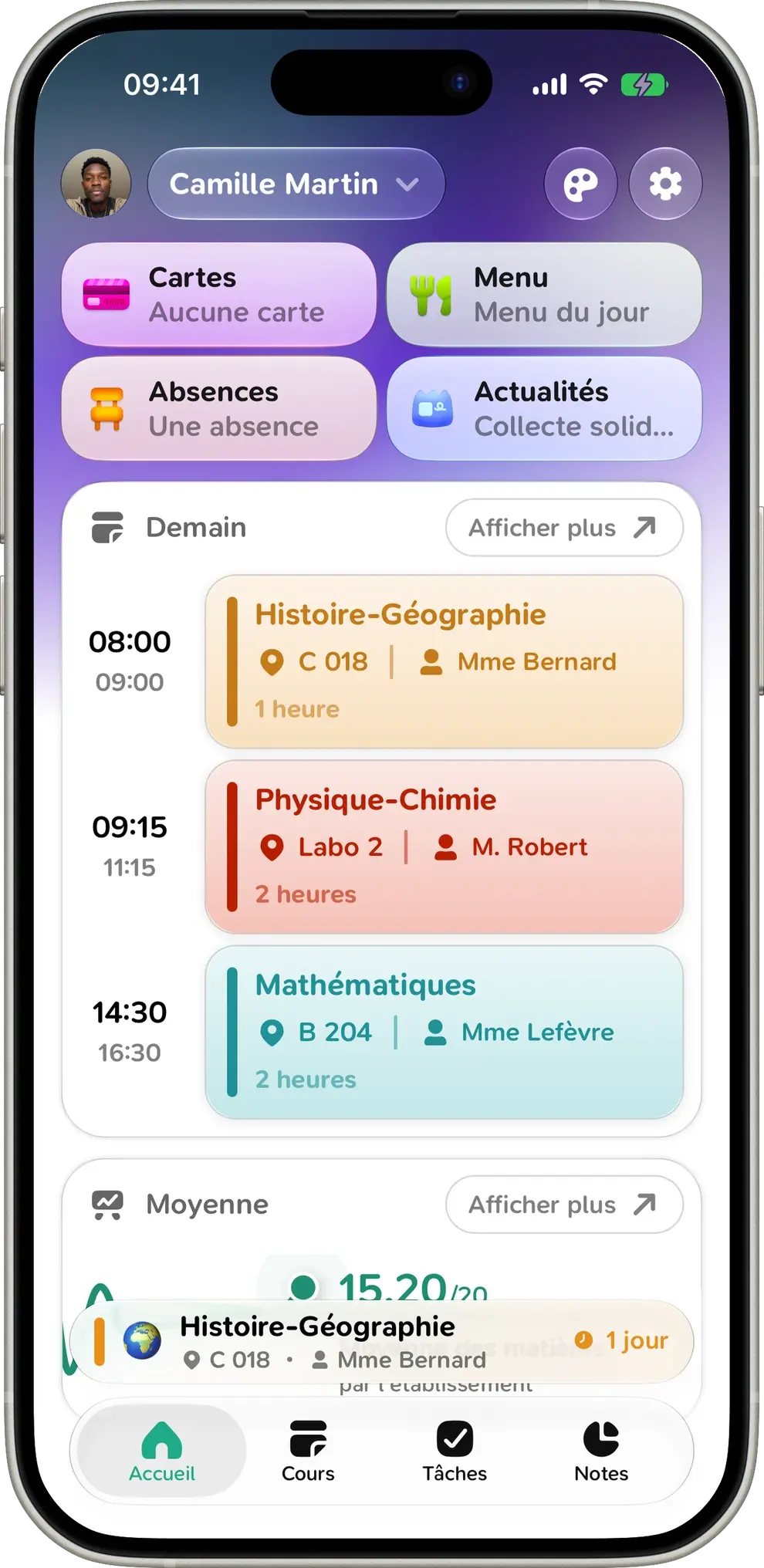
Your day, one class at a time
Papillon keeps your schedule up to date, flags canceled or changed classes and follows you all the way to your Lock Screen.

4.7 out of 5 · 2M+ downloads
Works with


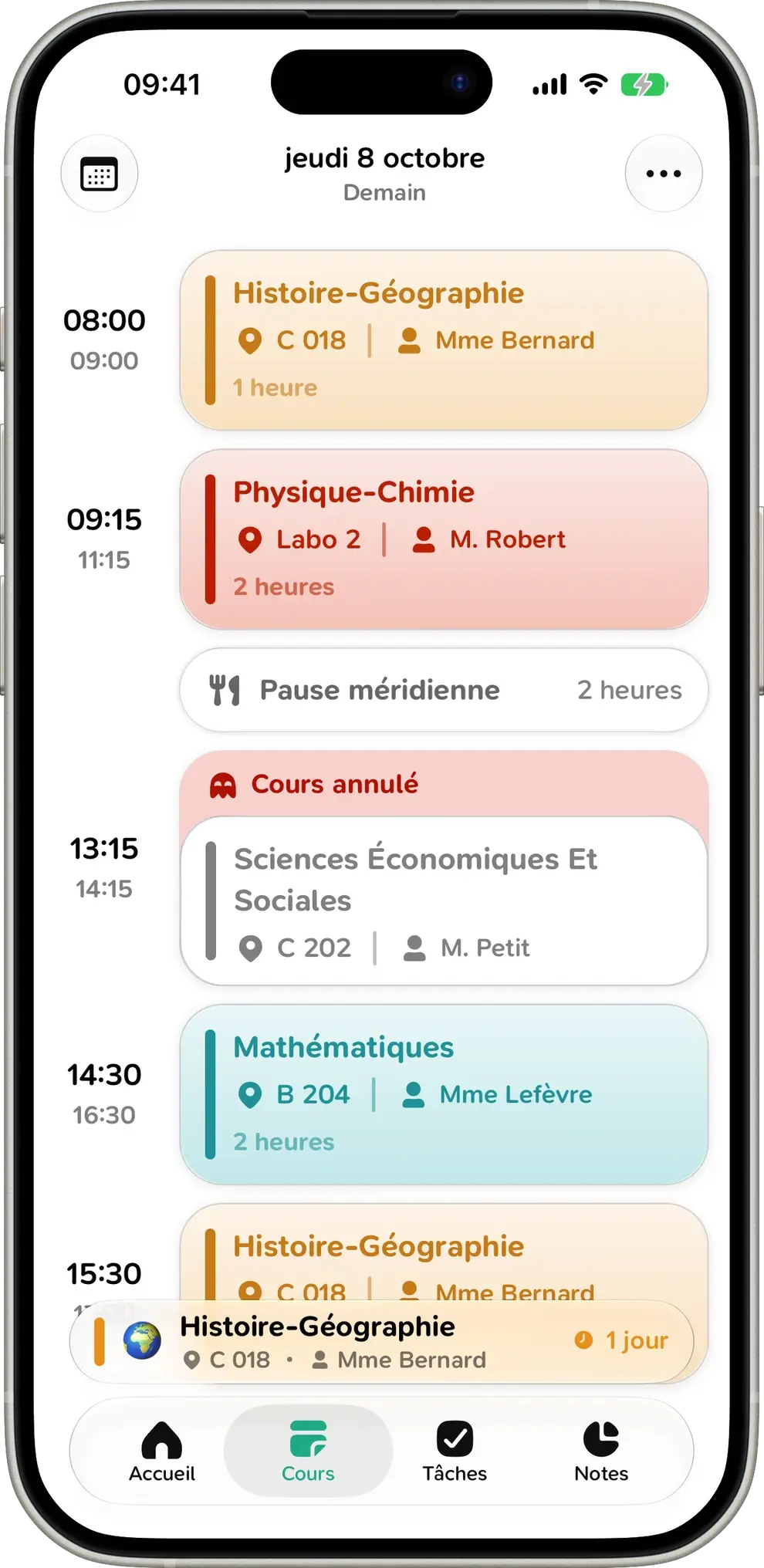
Class canceled? You’ll know right away
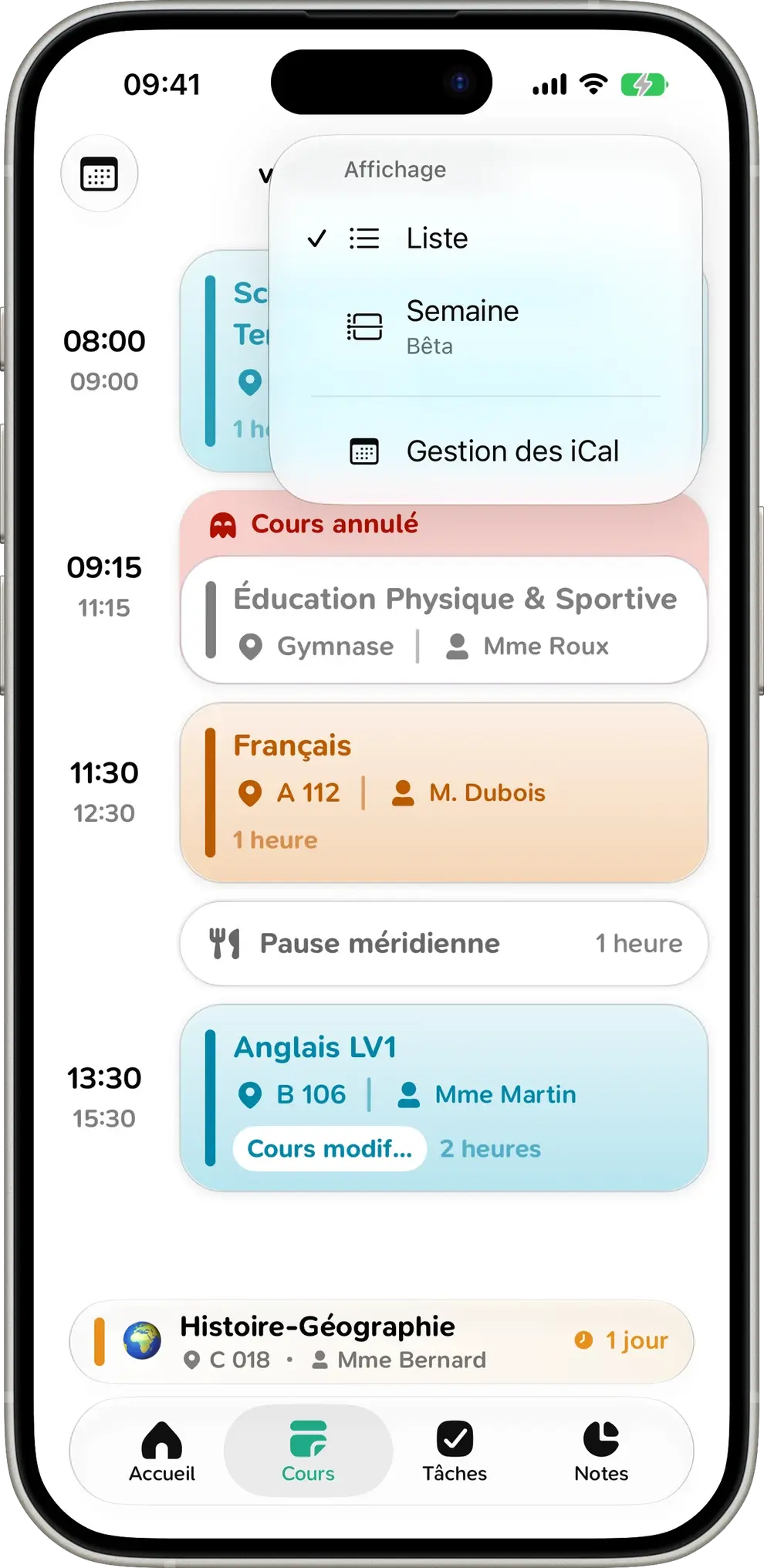
Class canceled or moved? You’ll see it right in your day. Room, teacher, length: it’s all there, breaks included.
List or week
Stick with the List view to follow your day, or switch to the Week view to see every class at once. It’s just one menu away.
Jump to any day
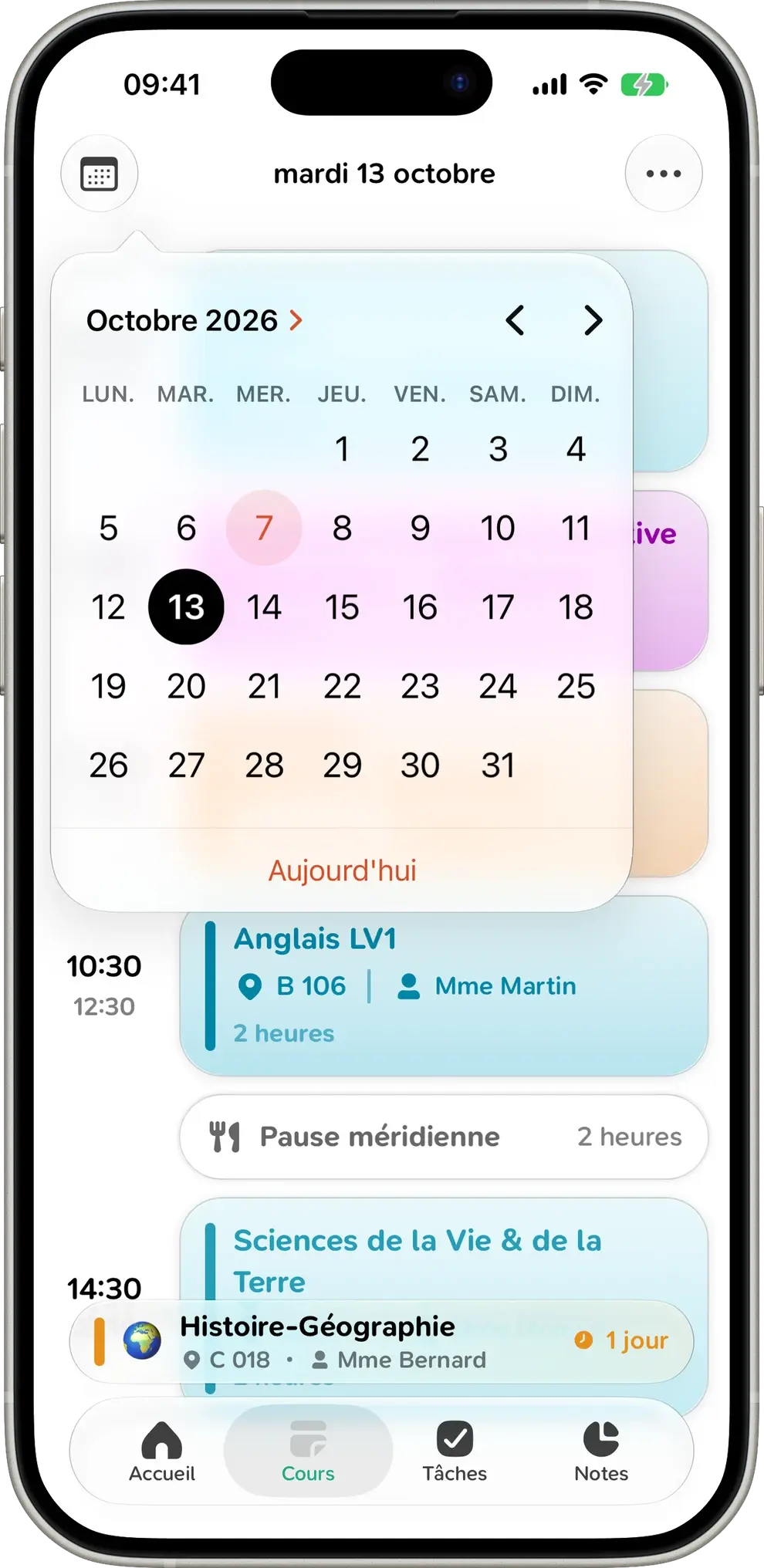
Swipe from one day to the next, or open the calendar to go straight to the date you need, whether it’s a test in two weeks or the first day back from break.
Every class, up close
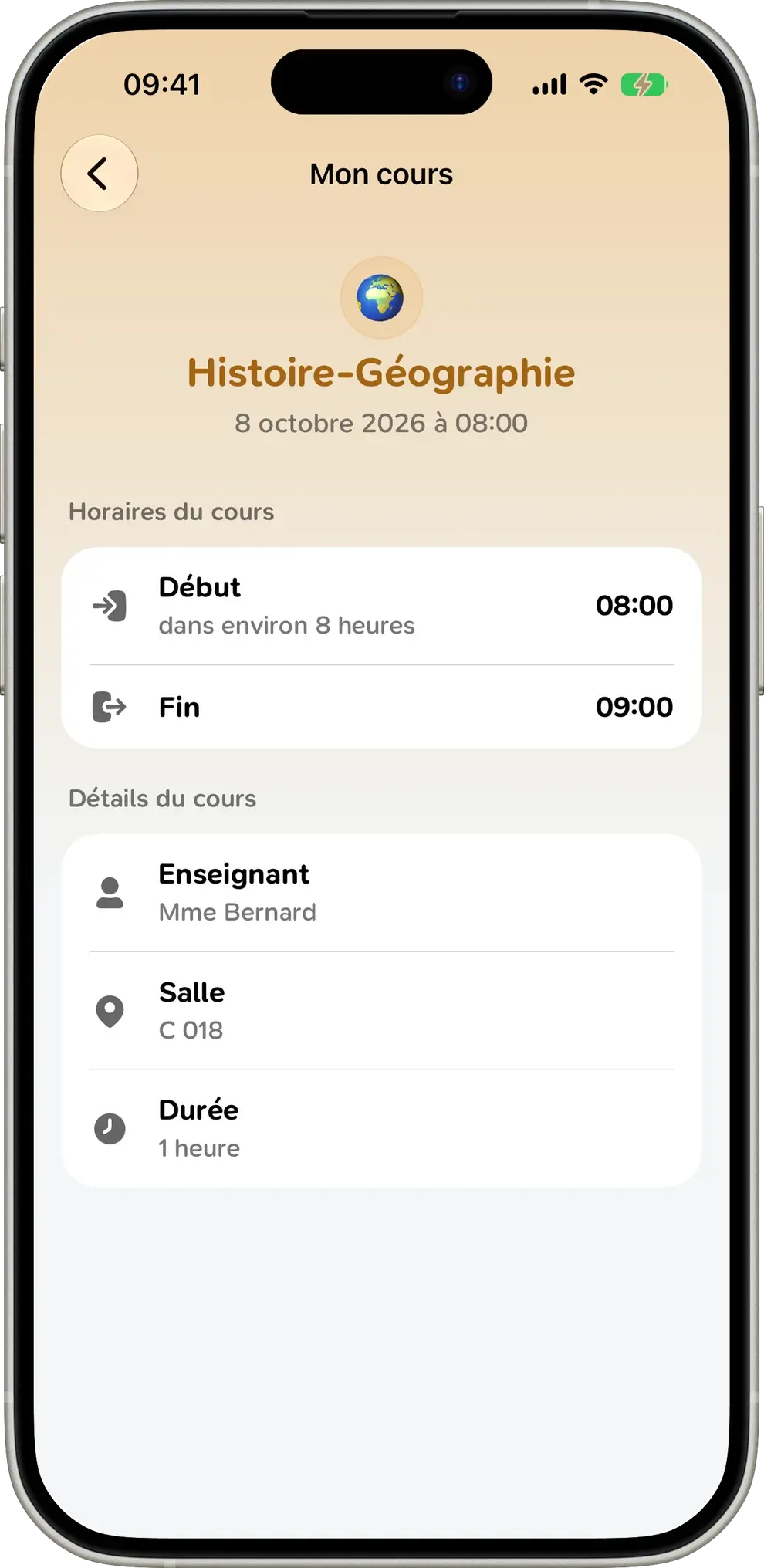
Tap a class to see when it starts and ends, how long until it begins, the room and the teacher. Papillon recognizes over 250 subjects, even when they’re abbreviated or in all caps, and gives each a clean name, an emoji and a color.
Your whole week, on one screen
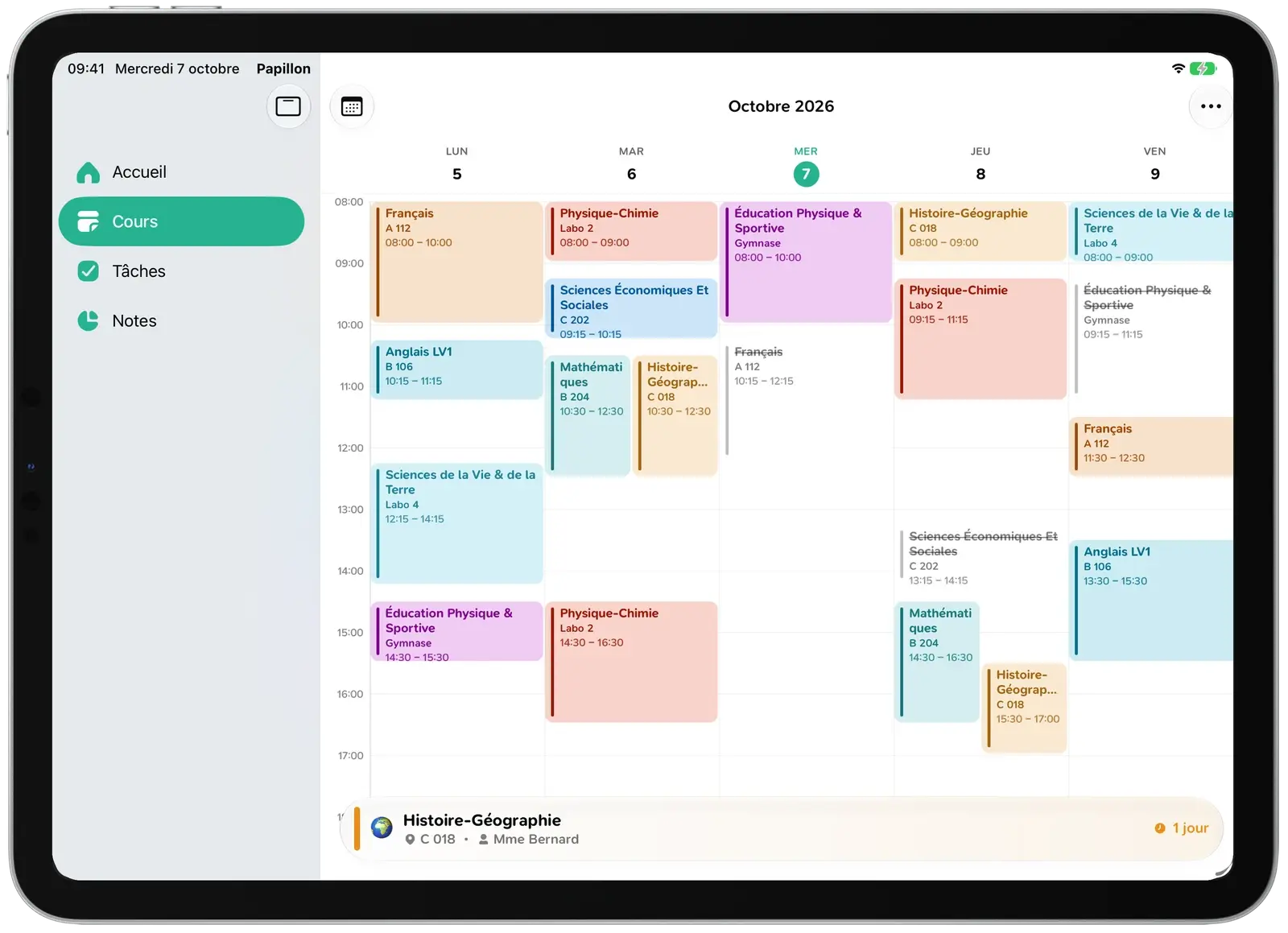
On iPad and Mac, the Week view shows every class from Monday to Friday at a glance, canceled ones included. Use the sidebar to jump between tabs.
Without even opening the app
On iPhone, your classes follow you onto the Lock Screen and the Home Screen.
Your class, on your Lock Screen
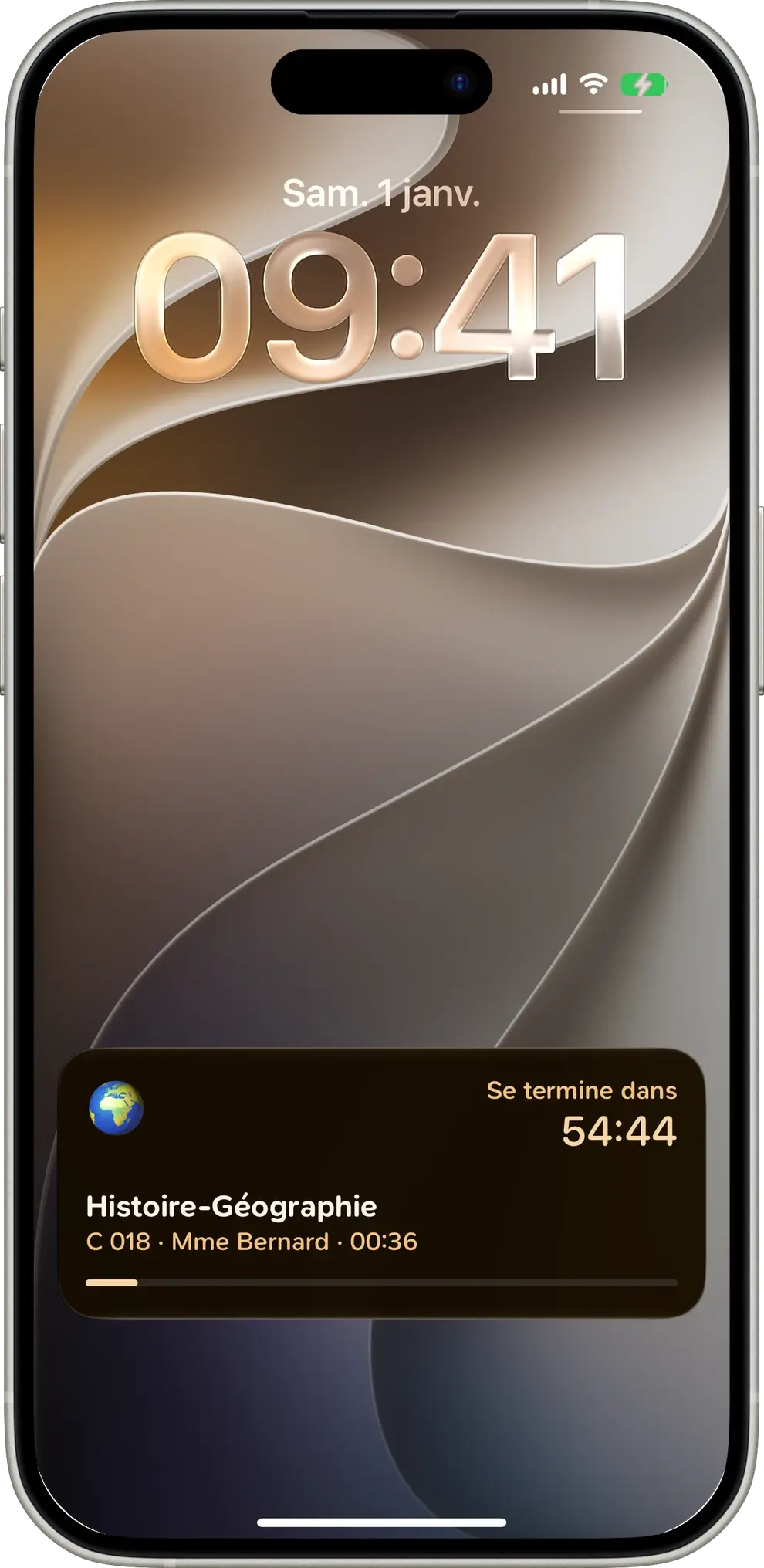
On iPhone, your current or next class shows up live on the Lock Screen and in the Dynamic Island, with the room and time remaining. No need to open the app between classes.
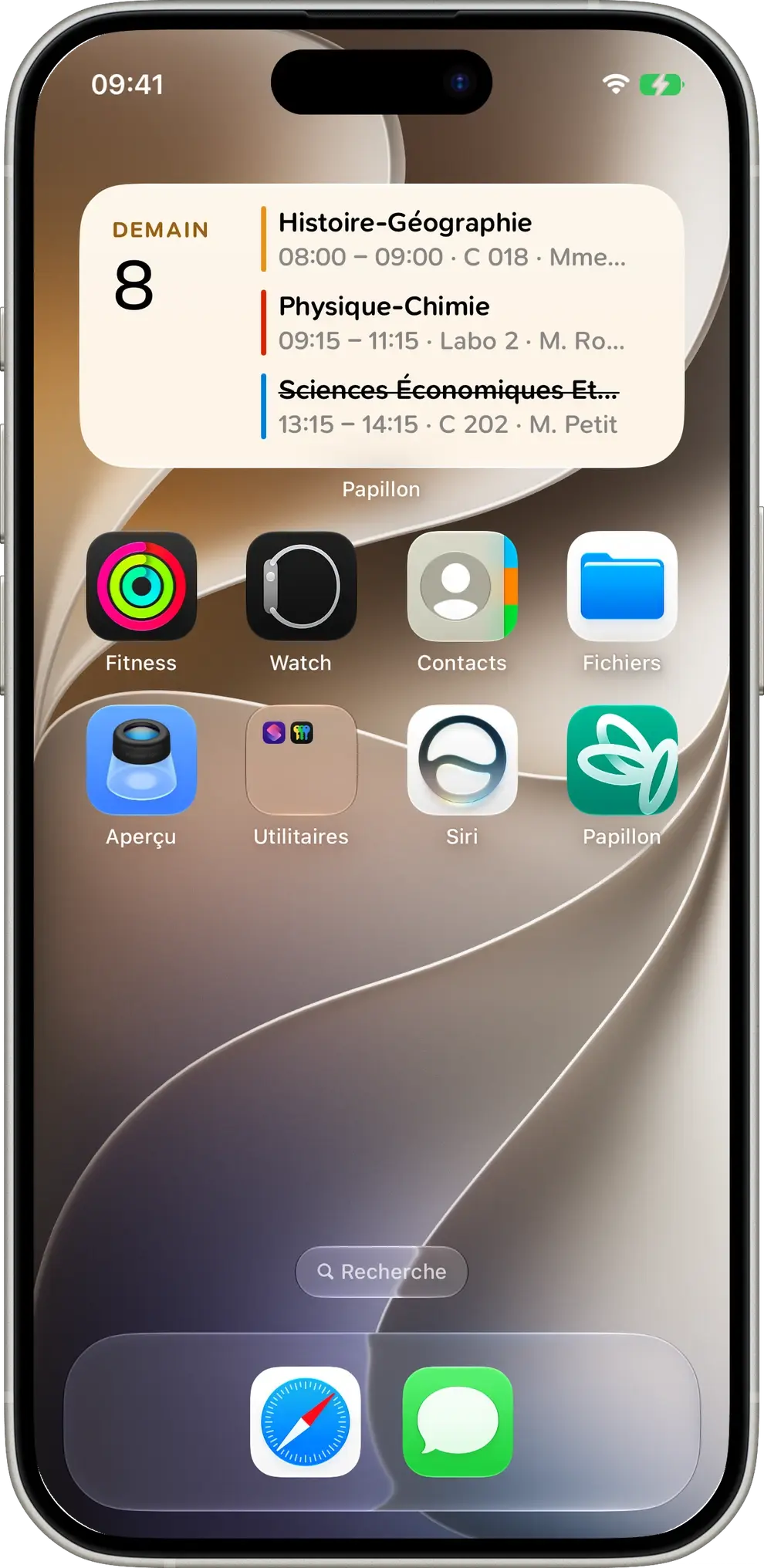
Your next classes, right on your Home Screen
Add the Papillon widget to your iPhone’s Home Screen and see your upcoming classes without even opening the app.
Also
Right on the home screen
Today’s or tomorrow’s classes are there the moment you open the app.
Works offline
Your schedule is always available, even without a connection.
iCal calendars
Add your iCal calendars and see them alongside your classes.
Big screen
On iPad and Mac, your whole week fits on one screen.
Make it yours
Change any subject’s name, emoji and color.
Just for you
Your schedule stays on your device, never on our servers.
Schedule FAQ
Everything you need to know about your schedule in Papillon.
Yes. Canceled classes, schedule changes and room changes show up as soon as your school posts them on Pronote, ÉcoleDirecte or Skolengo.
On iPhone, open Papillon’s settings and turn on Live Activities. Your current or next class will then appear on the Lock Screen and in the Dynamic Island.
Touch and hold your iPhone’s Home Screen, tap “+” at the top, then search for Papillon and choose the widget.
Yes. In the Schedule tab, tap “…” in the top-right corner and choose Week view. It’s still in beta.
Papillon automatically recognizes your subjects, even when your school abbreviates them or writes them in all caps, and gives each a clean name, an emoji and a color. You can change any of it.
Yes. Once your schedule has loaded, it’s saved on your device and available offline.
Yep. Everything is free, with no ads and no subscription.
Your next class, already in your pocket
Install Papillon and sign in with your school login. Your schedule shows up in seconds.